


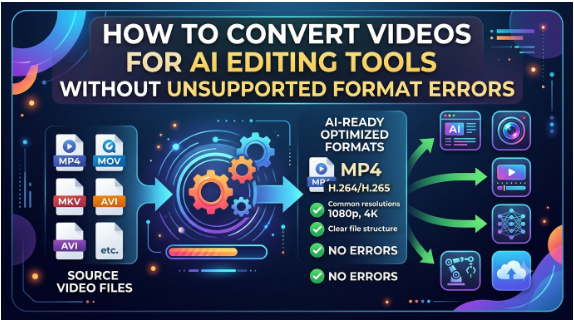
AI-powered video editing tools have made video creation faster and more accessible. From automatic scene detection and background removal to AI-generated effects, captions, voice enhancement, and text-based editing, these platforms can simplify many time-consuming editing tasks. However, there is one problem that can interrupt the workflow before editing even begins: unsupported video formats.
You may have a perfectly playable video on your computer or smartphone, yet an AI editing platform may refuse to import it. The reason is that video compatibility depends on more than the file extension. The container, video codec, audio codec, resolution, encoding settings, and other properties can determine whether an AI editor can process the file.
For example, an AI platform may accept MP4 files but reject an MP4 containing an unsupported codec. Similarly, a MOV file may work in one application but fail in another. Adobe Firefly, for example, currently lists MP4 and MOV with specific codecs among its supported video formats, while Runway supports a broader range of containers and codecs.
This is where a Free Online Video Converter can help. Instead of changing your entire editing workflow, you can convert the source video into a format that your AI editing tool can recognize.
Why Do AI Video Editing Tools Show Unsupported Format Errors?
An unsupported-format error generally occurs when an editing platform cannot decode or process some part of the uploaded video.
The most common reasons include:
- Unsupported Video Container
A video container is the file structure that holds the video, audio, subtitles, metadata, and other streams. Common containers include:
- MP4
- MOV
- MKV
- AVI
- WebM
- WMV
- FLV
Although the file extension gives you an idea of the container, it does not tell you everything about the video inside it.
For example, two MP4 files can use different codecs and encoding settings. One may be accepted by an AI editor while another produces an import error.
- Unsupported Codec
The codec determines how the video is compressed and decoded. Popular codecs include H.264, H.265/HEVC, VP8, VP9, and AV1.
Some AI platforms support several codecs, while others have more restrictive requirements. Runway, for example, documents support for H.264, H.265/HEVC, and AV1 in MP4, while also supporting additional combinations in MOV, MKV, WebM, and other containers.
Therefore, simply changing .mkv to .mp4 in the filename will not solve a codec compatibility problem.
- Unsupported Audio Codec
The video itself may be compatible, but the audio stream can cause the upload to fail.
AI editing platforms may have specific requirements for audio codecs such as AAC, PCM, MP3, or other formats. Adobe Firefly, for instance, lists AAC, PCM, MP3, and RAW audio streams for supported video formats.
Converting both the video and audio streams to commonly supported combinations can eliminate these problems.
- Unusual Encoding Settings
Videos recorded with smartphones, cameras, screen recorders, drones, or professional cameras may use advanced encoding settings. HDR, variable frame rates, unusual profiles, high bitrates, or newer codecs can sometimes create compatibility issues.
For example, Microsoft notes that Clipchamp supports many video containers but may automatically convert some files before they can be used. It also recommends formats such as MP4, MOV, and WebM for faster workflows.
What Is the Best Format for AI Video Editing?
There is no universal format that works perfectly with every AI editing platform. You should always check the requirements of your specific tool.
However, MP4 with H.264 video and AAC audio is often a practical choice when you need broad compatibility.
MP4 is widely supported across browsers, operating systems, smartphones, video editors, and online platforms. If your AI tool accepts MP4/H.264, converting your source video to this combination can significantly reduce compatibility problems.
For example, Adobe Firefly’s current technical requirements list MP4 with H.264/AVC or H.265/HEVC, as well as MOV with supported codecs.
Runway supports a wider selection, including MP4, MOV, MKV, WebM, 3GP, and OGV with specific codecs.
So, before converting a video, identify what the destination AI editor actually accepts.
How to Convert Videos for AI Editing Tools
Using a Free Online Video Converter is a straightforward way to prepare incompatible footage for AI editing.
Step 1: Check the AI Editor’s Supported Formats
First, determine the format and codec requirements of your AI editing platform.
Do not rely solely on the extension. If the platform specifies MP4 with H.264, for example, make sure your converted file uses an appropriate codec rather than simply having an .mp4 extension.
This step can save you from converting the video multiple times.
Step 2: Identify the Problem With Your Original Video
Check the source video’s extension and, if possible, its codec.
For example, your source could be:
- MKV with H.265
- WebM with VP9
- AVI with an older codec
- MOV with ProRes
- MP4 with HEVC
- FLV with an outdated codec
If your AI editor does not support that combination, conversion is usually the simplest solution.
Step 3: Open a Free Online Video Converter
You can use Stellar Free Online Video Converter to convert a video into a more suitable format.
The tool is browser-based, so you do not need to install dedicated conversion software. According to its product page, it supports major formats including MP4, MOV, AVI, MKV, FLV, and WMV, among others.
Step 4: Upload the Video
Upload the original video to the converter.
If the source video is in a format that your AI editor cannot recognize, converting it to a more widely supported format can make it easier to import.
For example:
MKV → MP4
AVI → MP4
WMV → MP4
FLV → MP4
MOV → MP4
The appropriate conversion depends on the requirements of your destination platform.
Step 5: Select the Desired Output Format
Choose the output format required by your AI editing tool.
If the platform recommends MP4, select MP4 rather than choosing a format simply because it produces a smaller file.
For general compatibility, MP4 is often a sensible starting point. If the AI platform specifically requires MOV, WebM, or another format, follow its documented requirements instead.
Step 6: Convert the Video
Start the conversion process and allow the tool to generate the new file.
A good conversion workflow should preserve the video’s important characteristics while creating a file that the target application can decode.
Stellar’s online converter describes its process as three steps: upload the video, select the desired format, and save the converted video.
Step 7: Upload the Converted File to the AI Editor
Once the conversion is complete, upload the new video to your AI editing platform.
If the previous error was caused by an unsupported container or codec, the converted version should have a better chance of being accepted.
However, if the upload still fails, check other restrictions such as maximum file size, video duration, resolution, frame rate, or platform-specific codec requirements.
For example, Adobe’s Firefly video editor currently specifies particular file types and upload limitations for its video workflow.
Why You Should Not Simply Rename the Video Extension
One of the most common mistakes is changing a file name from something like:
video.mkv
to:
video.mp4
This does not actually convert the video.
The extension is only an identifier for the container. Renaming the file does not change its internal video codec, audio codec, or encoding structure.
If the AI editor cannot decode the original stream, changing the extension will not make it compatible.
A genuine conversion process creates a new video with the required container and, when necessary, compatible video and audio codecs.
Choosing Between MP4, MOV, WebM, and Other Formats
The right format depends on your destination.
MP4
MP4 is generally a strong choice when compatibility is the priority. It is widely used for online publishing, social media, mobile devices, and video editing.
If your AI editing platform supports H.264 MP4, this is often a convenient format for general-purpose workflows.
MOV
MOV is commonly associated with Apple and professional video workflows. It can contain codecs such as H.264, HEVC, and ProRes depending on the file.
It can be an excellent choice when the AI editor specifically supports the MOV/codec combination you are using.
WebM
WebM is widely used for web-based video and can contain codecs such as VP8, VP9, or AV1. However, support varies between applications.
If your AI editing platform does not support your particular WebM configuration, converting it to MP4 may be easier.
MKV
MKV is highly flexible and can contain multiple video, audio, subtitle, and other streams. However, not every online editing service supports it.
If an AI editor rejects an MKV file, converting it to a supported format can resolve the issue.
Tips for Avoiding AI Video Import Problems
Converting the video is only one part of preparing media for AI editing. Follow these additional practices to minimize errors.
Check Requirements Before Recording
If you regularly create videos for a specific AI editing platform, check its supported formats before recording.
Choosing a compatible format at the beginning can eliminate unnecessary conversions.
Prefer Common Codecs
When broad compatibility matters, use commonly supported codec combinations rather than highly specialized encoding settings.
H.264 is particularly useful when the destination platform recommends it.
Avoid Repeated Conversions
Every time a video is re-encoded, there is a possibility of quality degradation. Whenever possible, convert directly from the original source to the format required by the AI editor.
For example:
Original MKV → Required MP4
is generally preferable to:
MKV → AVI → MOV → MP4
Keep the Original File
Always retain the original recording. If the converted version has unexpected quality loss or does not work with another platform, you can create another output using different settings.
Check File Size
A compatible format can still be rejected if the file exceeds the platform’s upload limit.
If the converted file is too large, use a video compressor after selecting an appropriate format, rather than repeatedly converting the same file.
Test a Short Clip First
For very large projects, consider testing a short section before converting the entire video. This allows you to confirm that the format works with the AI editor before spending time processing a large file.
How a Free Online Video Converter Simplifies AI Editing Workflows
AI editing is supposed to make video production faster. Spending time troubleshooting incompatible formats can undermine that advantage.
A Free Online Video Converter provides a convenient bridge between your original footage and the requirements of your AI editing platform.
Instead of replacing your camera, screen recorder, smartphone, or existing editing workflow, you can convert the finished footage when necessary.
Stellar’s online converter is designed for this type of browser-based conversion workflow. Its product page states that it supports major video formats, does not require software downloads, and provides a three-step upload, conversion, and save process. It also states that uploaded files are protected and deleted after processing.
For creators who frequently work with different cameras, smartphones, screen recorders, and AI tools, having a convenient conversion option can make the workflow considerably easier.
Final Thoughts
Unsupported-format errors can be frustrating, particularly when you are ready to start editing and your AI platform refuses to accept the video. In most cases, the problem is not that the video itself is unusable. The issue may simply be that its container, codec, audio stream, or encoding settings are incompatible with the destination platform.
The easiest solution is to identify the AI editor’s requirements first and then convert your video accordingly.
A Free Online Video Converter can help transform incompatible footage into a format that is easier for AI editing tools to process. For general compatibility, MP4 is often a practical choice, while MOV, WebM, or other formats may be preferable when specifically required by the destination platform.
By checking compatibility requirements, choosing an appropriate codec, avoiding unnecessary conversions, and keeping your original footage, you can create a smoother workflow from recording to AI-assisted editing.
FAQs
- What is the best video format for AI editing tools?
MP4 is often a practical choice for broad compatibility, particularly when encoded with H.264 video and AAC audio. However, the best format depends on the specific AI editing platform because supported containers and codecs vary.
- Can I convert an unsupported MKV video to MP4 for AI editing?
Yes. If your AI editor does not support your MKV file, converting it to a compatible MP4 configuration can make the video easier to import. Check the platform’s codec requirements before conversion.
- Does changing a video’s extension fix an unsupported format error?
No. Renaming a file from .mkv to .mp4, for example, does not actually convert its internal video or audio streams. You need a genuine video conversion process to change the format or codec.
- Can a Free Online Video Converter convert videos for AI tools?
Yes. A Free Online Video Converter can be used to convert videos between supported formats so they can be used with compatible AI editing platforms. Stellar’s online converter supports major formats such as MP4, MOV, AVI, MKV, FLV, and WMV.
- Will converting a video reduce its quality?
It can, particularly when the video is re-encoded using aggressive compression settings. To maintain good quality, avoid unnecessary conversions and use an appropriate output format and quality setting for the target AI editing platform.